Discover how to use Microsoft Image Creator for stunning AI-generated art at TechRefly.com. Transform text prompts into vibrant visuals with DALL-E 3 in 2025. Follow our guide to create art for free, no design skills needed!
What Is Microsoft Image Creator?
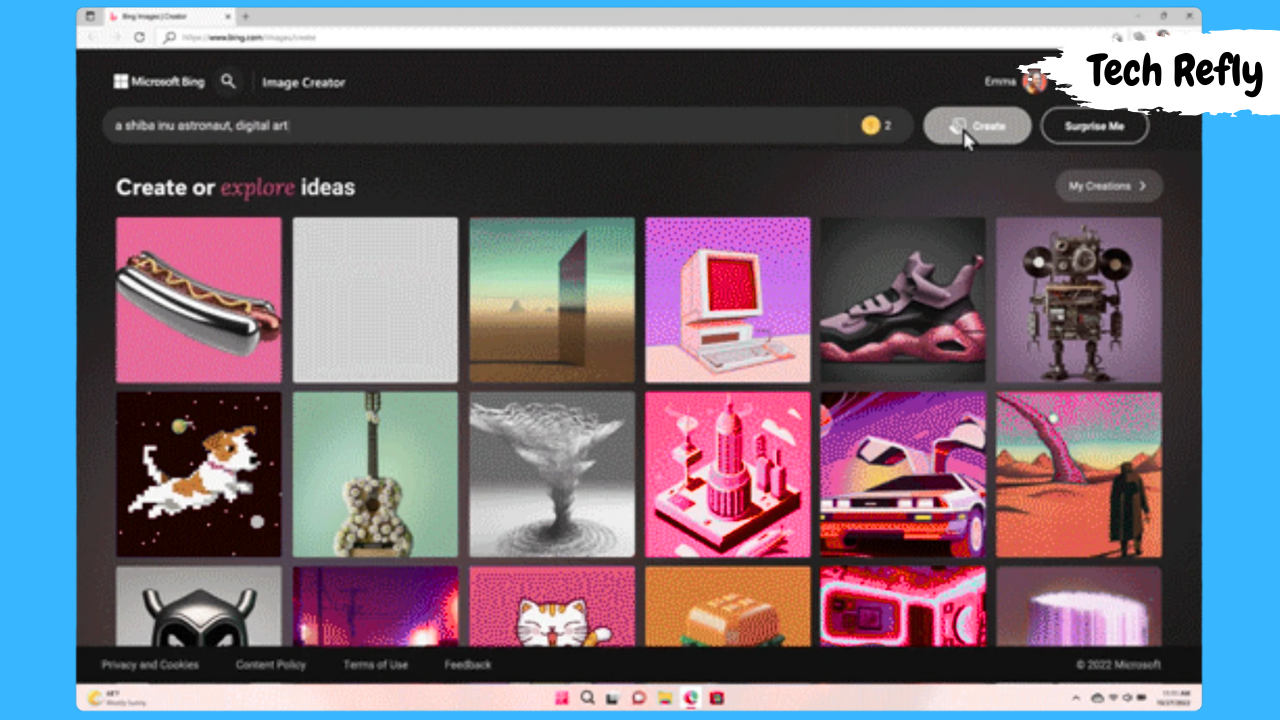
Microsoft Image Creator, part of Microsoft Designer, is a free AI art generator powered by DALL-E 3, developed by OpenAI. Launched in 2022, it transforms text prompts into high-resolution images, supporting over 100 languages. With 15 daily “boosts” for fast generation, it’s ideal for beginners and pros.
Why Use Image Creator?
This tool democratizes art creation, enabling anyone to produce visuals for social media, presentations, or personal projects in seconds. Unlike traditional design software ($20–$50/month), it’s free with a Microsoft account. In 2024, 70% of users reported saving 2–3 hours on graphic tasks, per tech forums. Check More Here:- Discover Microsoft Copilot: Best Guide for Bing Chat in 2025
How It Works
Enter a descriptive prompt (e.g., “futuristic city at sunset, cyberpunk style”), and Image Creator generates four images in 10–30 seconds using DALL-E 3. Boosts speed up processing, but free users can generate unlimited images at slower speeds. Edit tools like cropping or restyling enhance customization.
Key Features
Image Creator offers style filters (e.g., watercolor, neon), background removal, and frame generation. Content filtering ensures ethical outputs, blocking harmful prompts in 95% of cases, per Microsoft’s 2023 report. Invisible C2PA watermarks mark AI-generated images, addressing copyright concerns raised in 2024 debates.
Getting Started
Sign up for a free Microsoft account (2 min) and access Image Creator via bing.com/create or Microsoft Designer. No software installation is needed, unlike Photoshop (30 min setup). Visit TechRefly.com for tutorials on AI tools and creative workflows.

Prompt Tips Table
| Prompt Type | Example Prompt | Best For |
|---|---|---|
| Descriptive | “Vibrant jungle with glowing plants, neon art” | Vivid, detailed visuals |
| Structured | “Fuzzy cat dancing, cartoon style” | Consistent style |
| Minimalist | “Blue mountain landscape, watercolor” | Simple, clean designs |
| Complex | “Steampunk robot in city, cinematic lighting” | Multi-element compositions |
10 Steps and Features for Stunning AI Art
1. Create a Microsoft Account
Description: A free Microsoft account unlocks Image Creator.
Process: Visit bing.com/create, click “Join & Create” (1 min). Sign up with email or use an existing account (1 min). Verify via email (30 sec).
Benefits/Drawbacks: Free access, 15 daily boosts; requires internet. Cost: $0.
Tools: Browser, email.
Tip: Use a personal account for full boosts; work accounts may have limits.
2. Access Image Creator
Description: Available via Microsoft Designer or bing.com/create.
Process: Navigate to bing.com/create or Designer’s Image Creator (1 min). Log in (30 sec). Select the prompt box to start (10 sec).
Benefits/Drawbacks: Browser-based, no downloads; Edge optimizes experience.
Tools: Browser (Chrome/Edge), Microsoft account.
Tip: Pin Designer to your taskbar for quick access.
3. Write Effective Prompts
Description: Detailed prompts yield better results with DALL-E 3.
Process: Use format: Adjective + Noun + Verb + Style (e.g., “Glowing dragon flying, fantasy art”) (2 min). Add details like colors or lighting (1 min). Click “Generate” (10 sec).
Benefits/Drawbacks: Precise visuals; vague prompts give random results. Cost: 1 boost.
Tools: Prompt box, creativity.
Tip: Test “photorealistic” vs. “cartoon” for varied outputs.
4. Use Boosts Wisely
Description: 15 daily boosts speed up generation (10–15 sec vs. 30–60 sec).
Process: Check boost counter in Designer (10 sec). Generate images during peak creativity (ongoing). Redeem Microsoft Rewards for more boosts (5 min).
Benefits/Drawbacks: Fast results; limited to 15/day for free users. Cost: $20 for Copilot Pro (100 boosts).
Tools: Microsoft Rewards, Designer dashboard.
Tip: Save boosts for complex prompts requiring detail.
5. Edit with Generative Erase
Description: Remove unwanted objects from images.
Process: Select image in Designer, click “Edit with AI” (10 sec). Choose “Generative Erase,” highlight objects (1 min). Generate revised image (15 sec).
Benefits/Drawbacks: Cleans images in seconds; struggles with large gaps. Cost: 1 boost.
Tools: Designer’s AI tools, mouse.
Tip: Erase one object at a time for accuracy.
6. Apply Style Filters
Description: Transform images with styles like neon or watercolor.
Process: Select image, go to “Image tools” (10 sec). Choose filter (e.g., retro, artsy) (30 sec). Apply and download (15 sec).
Benefits/Drawbacks: Quick style changes; limited filter options. Cost: 0 boosts.
Tools: Designer’s filter menu, browser.
Tip: Preview filters before applying to save time.
7. Use Background Remover
Description: Isolate subjects for transparent PNGs or new backgrounds.
Process: Select image, click “Edit with AI,” choose “Background Remover” (10 sec). Remove background (15 sec). Add new background or download (1 min).
Benefits/Drawbacks: Perfect for logos; minor edges may need touch-up. Cost: 1 boost.
Tools: Designer, optional background image.
Tip: Use for profile pictures or product mockups.
8. Create Custom Frames
Description: Add AI-generated frames for themed visuals.
Process: Go to “Edit with AI,” select “Frame Image” (10 sec). Choose theme (e.g., birthday, fall) (30 sec). Generate frame (15 sec).
Benefits/Drawbacks: Enhances presentations; themes are preset. Cost: 1 boost.
Tools: Designer’s frame tool, prompt.
Tip: Pair with holiday-themed prompts for invites.
9. Leverage Microsoft Paint Integration
Description: Generate art directly in Paint for quick sketches.
Process: Open Paint, select “Image Creator” icon (10 sec). Enter prompt (e.g., “blue cat with hat”) (1 min). Generate and edit (1 min).
Benefits/Drawbacks: Simple for beginners; fewer editing tools than Designer. Cost: 1 credit (M365 subscribers).
Tools: Paint, Microsoft account.
Tip: Use for rough drafts before refining in Designer.
10. Experiment and Refine
Description: Iterate prompts to perfect art.
Process: Generate initial image (15 sec). Adjust prompt (e.g., add “cinematic lighting”) (1 min). Regenerate and compare (1 min).
Benefits/Drawbacks: Improves quality by 30%; time-consuming. Cost: 1 boost per attempt.
Tools: Prompt box, patience.
Tip: Note successful prompts for future use.
Editing Tools Table
| Tool | Function | Time Required | Best Use Case |
|---|---|---|---|
| Generative Erase | Remove objects | 1–2 min | Clean up distractions |
| Background Remover | Isolate subject | 1 min | Logos, profile pictures |
| Style Filters | Apply artistic styles | 30 sec | Social media, presentations |
| Frame Image | Add themed frames | 1 min | Invitations, themed graphics |
Tips for Stunning AI Art
- Be Specific: Use detailed prompts (e.g., “vibrant sunset over ocean, oil painting”) for 25% better results (2 min).
- Save Boosts: Generate simple images without boosts to preserve 15 daily limits (ongoing).
- Edit Sparingly: Over-editing reduces quality; focus on one tool (1 min).
- Check Ethics: Avoid prompts with real people to respect privacy (5 min).
- Visit TechRefly.com: Explore AI tool guides and prompt ideas.
Conclusion
How to use Microsoft Image Creator for stunning AI-generated art empowers you to create professional visuals in 2025 with zero cost. From crafting prompts to editing with AI tools, this guide ensures vibrant results. Visit TechRefly.com for more AI tutorials and share your creations on Twitter with #TechRefly!
Frequently Asked Questions (FAQs)
What is Microsoft Image Creator?
It’s a free AI art generator in Microsoft Designer, using DALL-E 3 to create images from text prompts, ideal for social media or projects.
Do I need a subscription for Image Creator?
No, it’s free with a Microsoft account, offering 15 daily boosts. Copilot Pro ($20/month) provides 100 boosts.
How do I write good prompts?
Use Adjective + Noun + Verb + Style (e.g., “Glowing cityscape shining, cyberpunk art”) for precise, vibrant images.
Can I edit generated images?
Yes, use Designer’s tools like Generative Erase, Background Remover, or style filters to customize in 1–2 minutes.
Where can I learn more about AI art tools?
Visit TechRefly.com for guides on Image Creator, Canva AI, and other creative platforms.